Facebook Integration
This guide will help you connect your Facebook Fanpage with Conductify AI Agent. Follow these steps to ensure a smooth and successful integration process.
Part 1: Setup in Integration Browser
If you don't have Integration Browser, refer to here
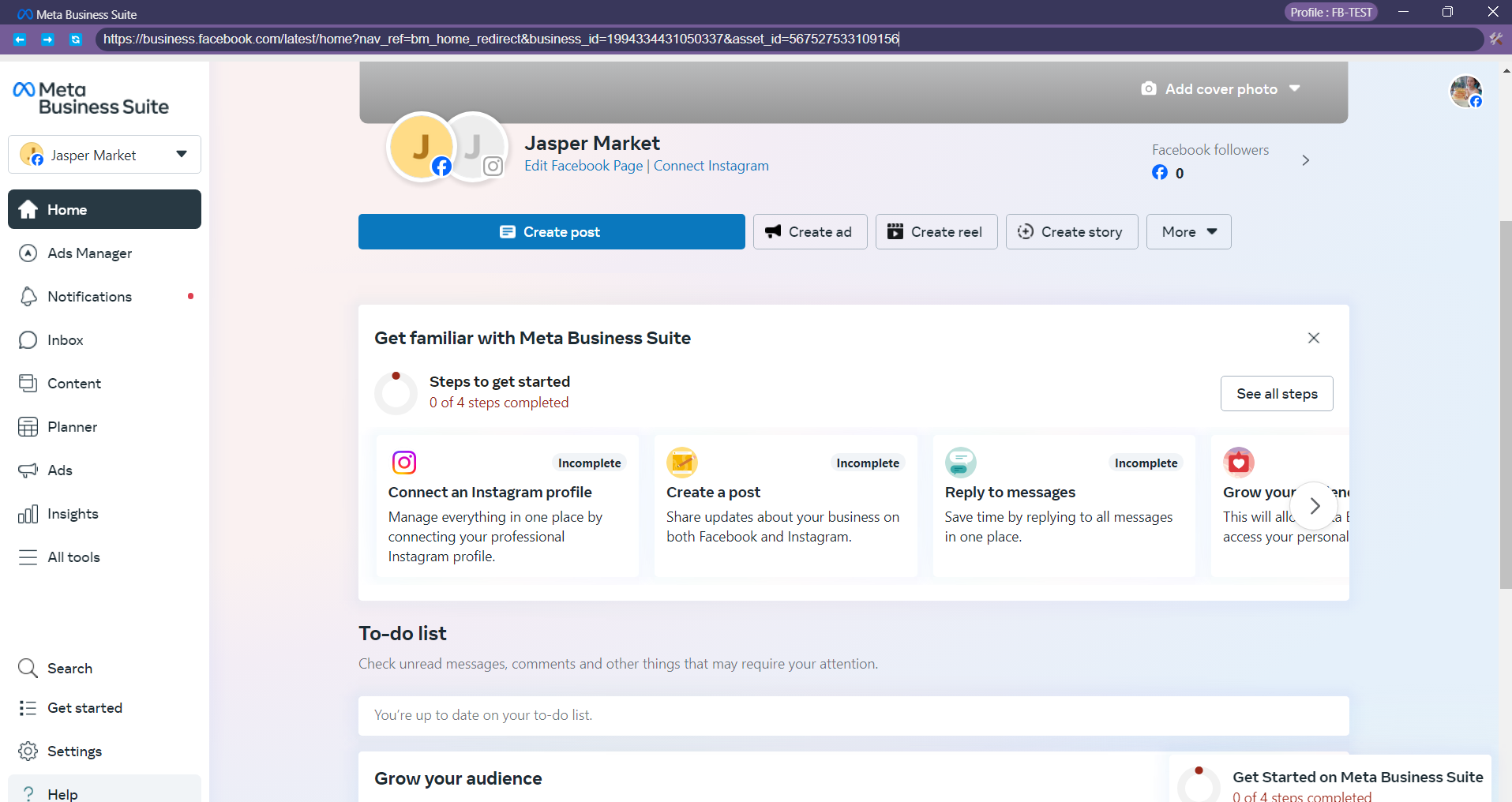
Step 1: Access Meta Business Suite
- After creating a profile, access to
https://business.facebook.comfrom the Integration Browser.
Requires a Facebook account with a created Fanpage
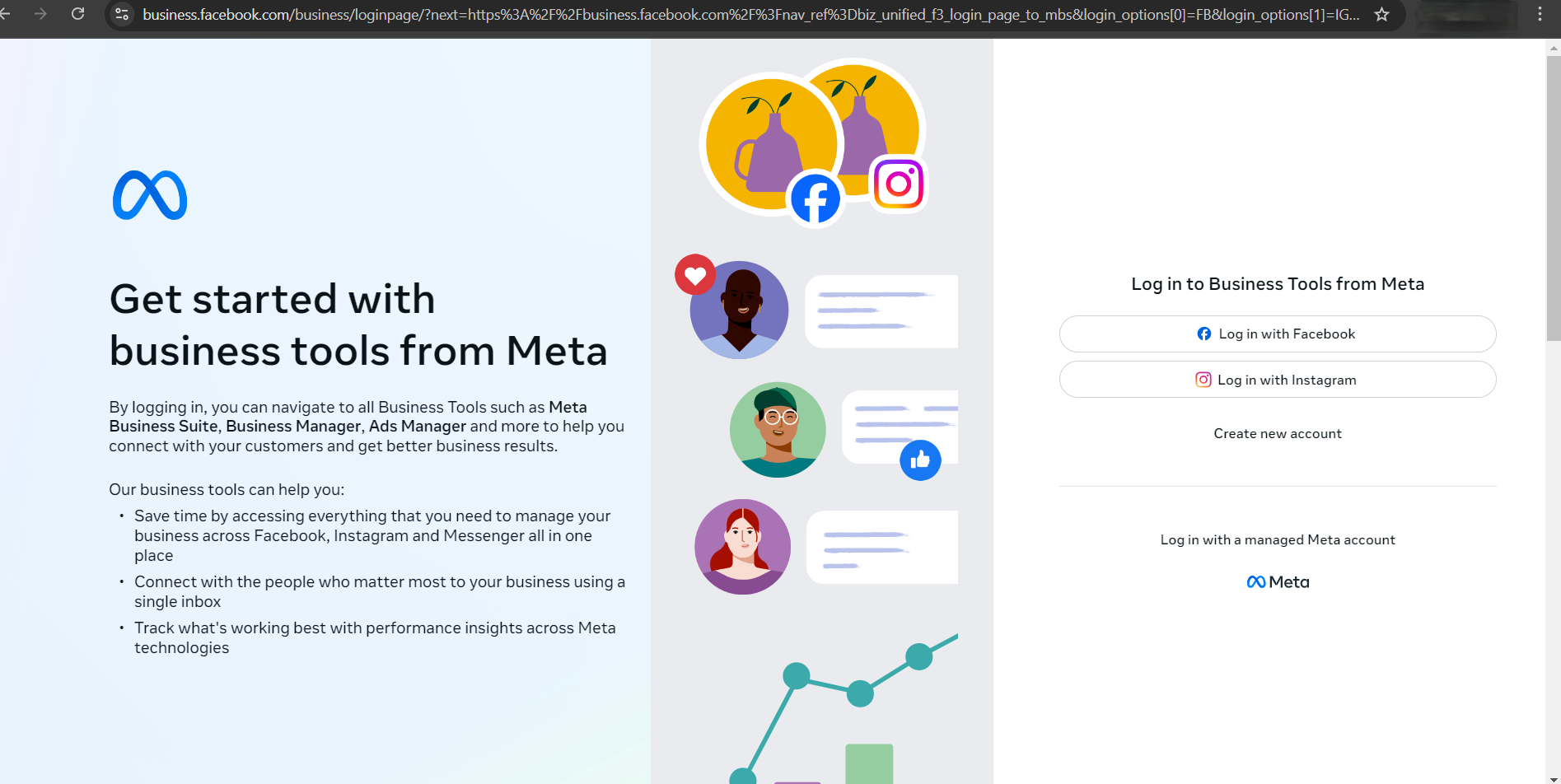
Step 2: Login
-
Login to Meta Business Suite using your Facebook account.
Each account can only be logged in on one device at a time, and each Agent needs its own Integration account.
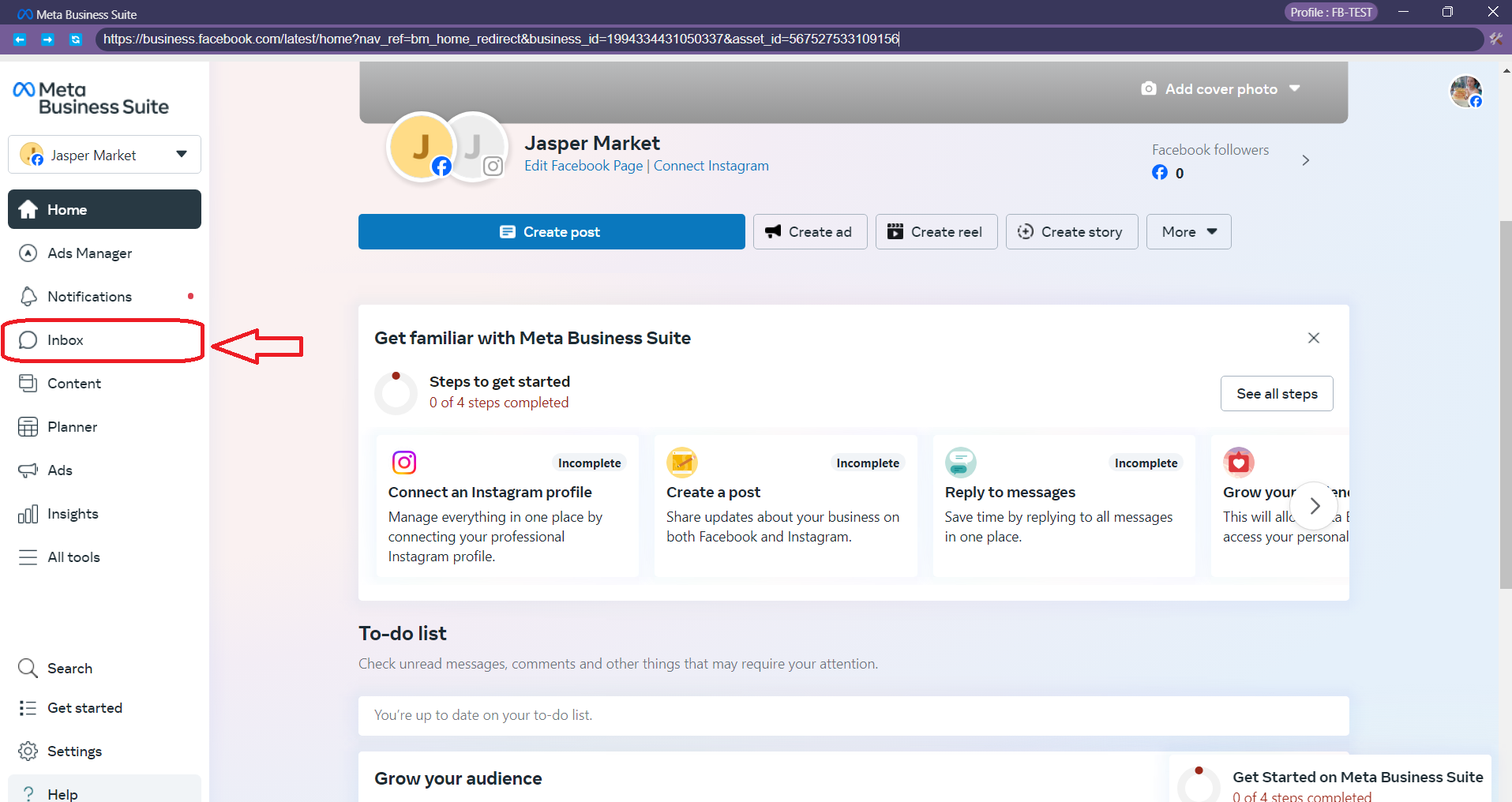
Step 3: Access Meta Business Suite Inbox
-
Click on the Inbox button circled in red.
Part 2: Setup in Conductify AI Studio
Step 1: Access Conductify AI Studio
-
Access Conductify AI Studio
-
Login or Register if you don't have an account
Step 2: Add Integration
-
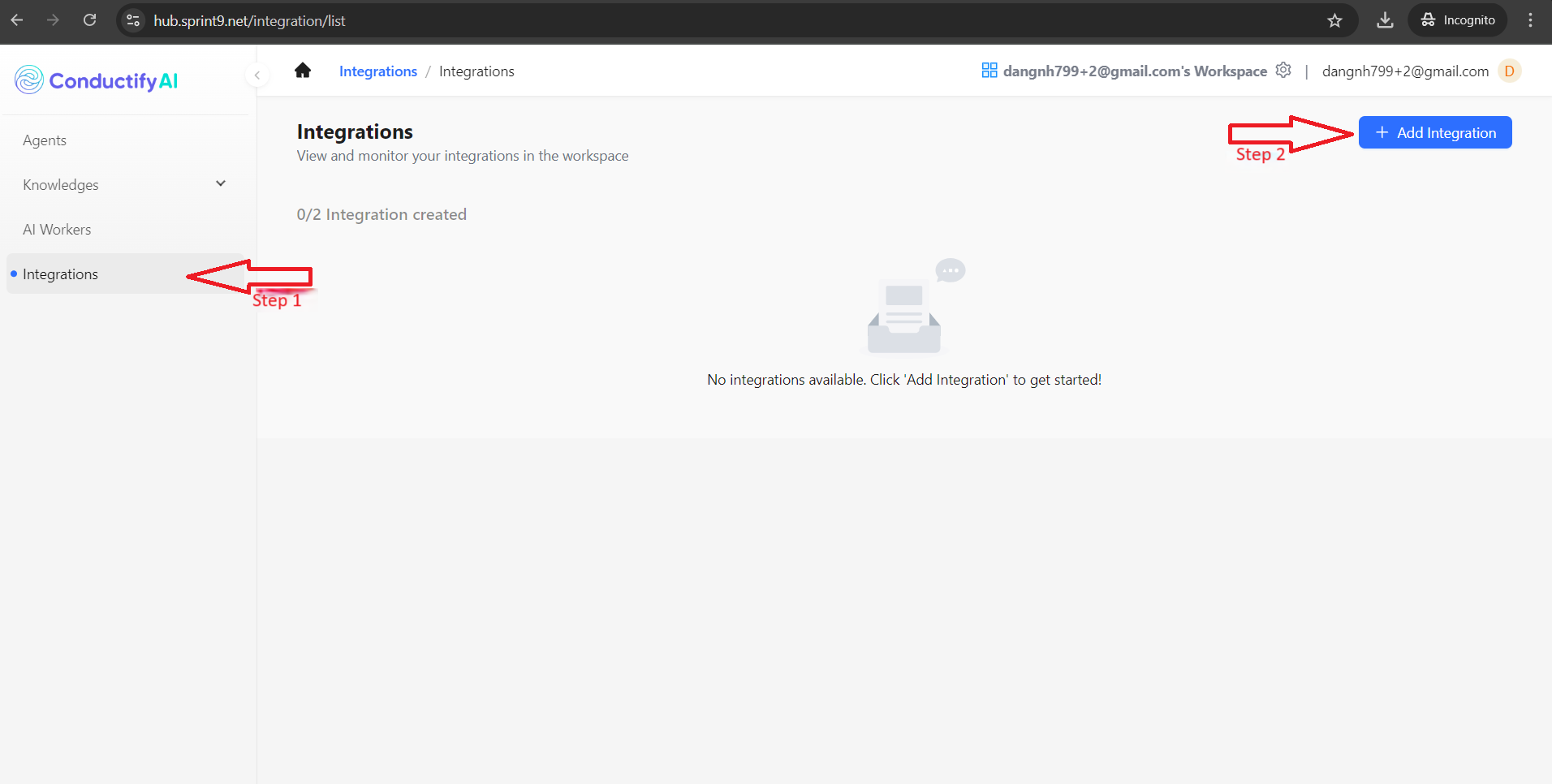
On the Homepage, select Integrations tab from the left menu and click the Add Integration button
-
A new window will appear with 3 required fields to create a new Integration:
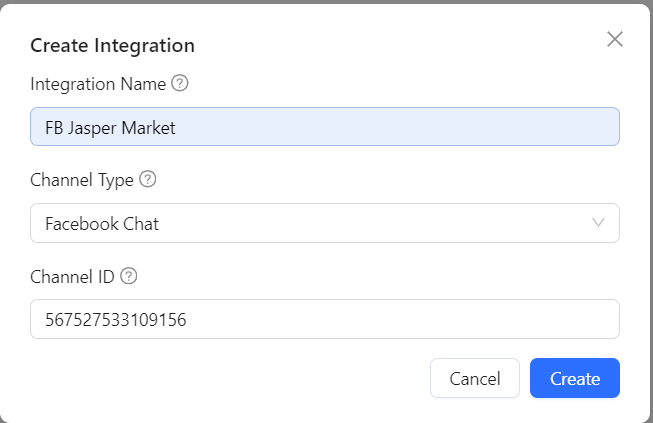
- Integration Name: Name of Integration, can be customized (example: "FB Jasper Market")
- Integration Type: Select Integration type (in this case, "Facebook Chat")
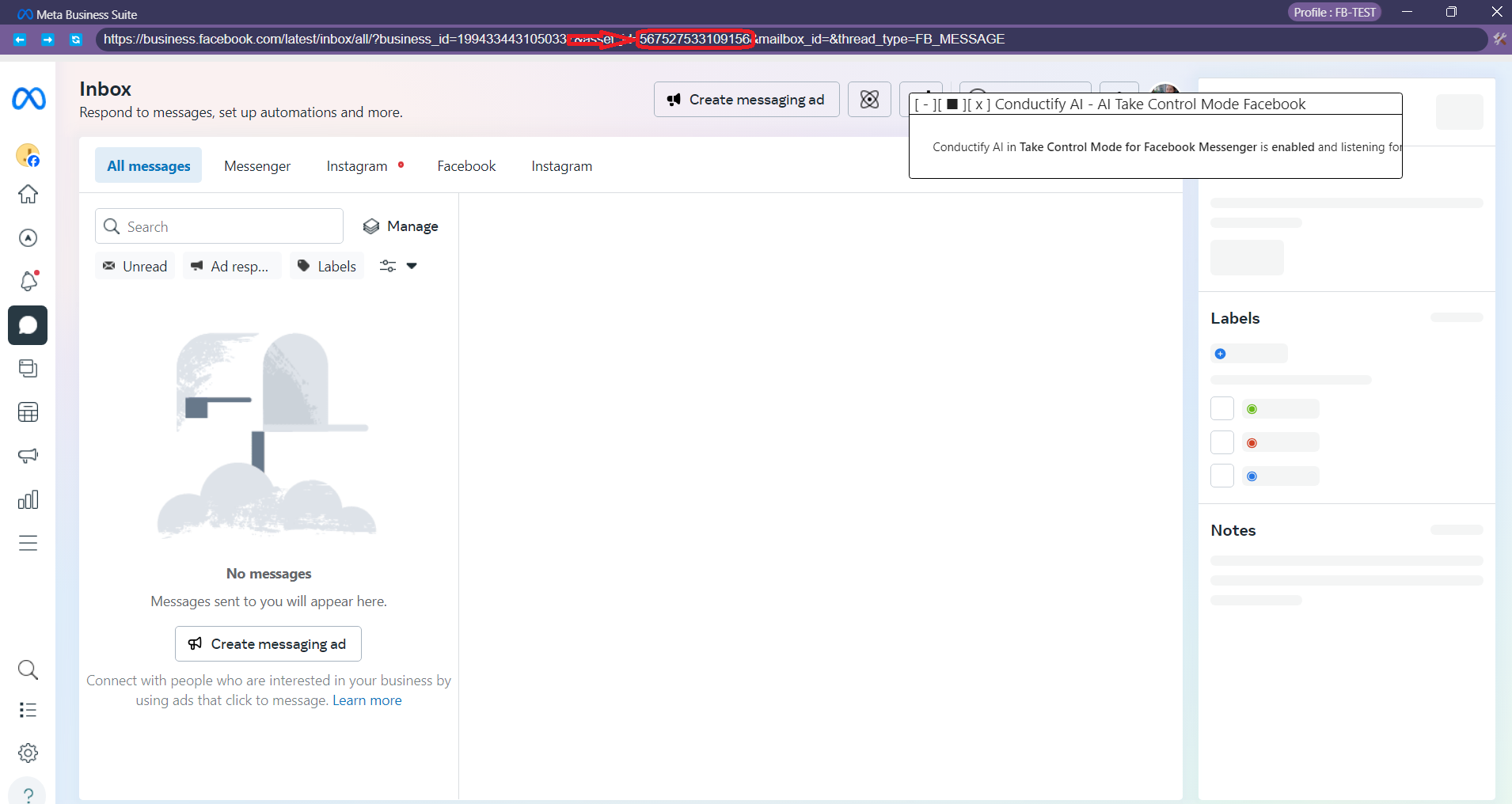
- Integration Account: The ID of the Fanpage created in Meta Business Suite
Get the ID from the area circled in red (asset_id), each account will have a different ID.
- After setup is completed, click the Create button to create the Integration
Step 3: Configure Integration
Ensure that Integration is fully functional and productive, you must have 1 AI Agent created beforehand.
-
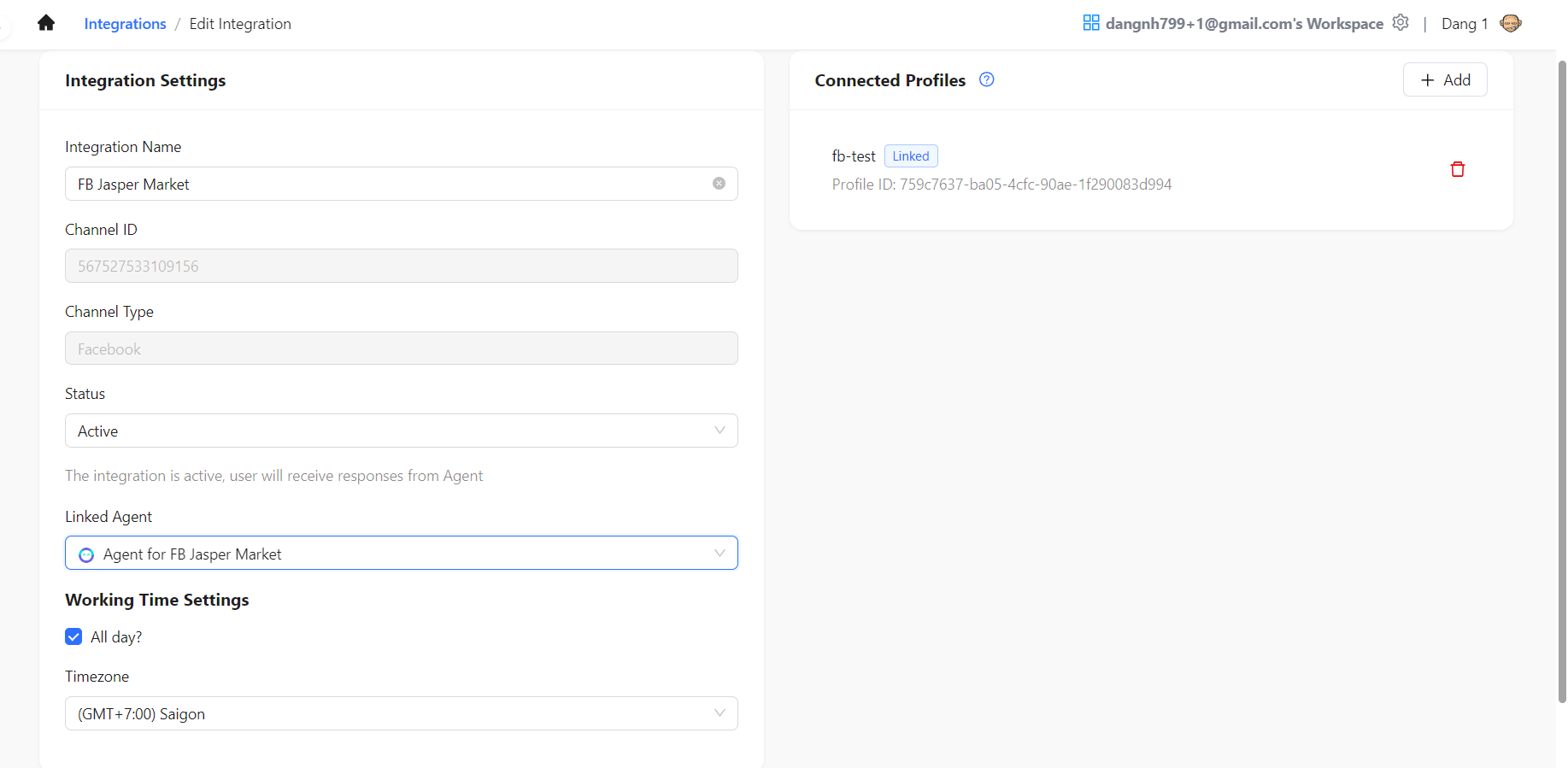
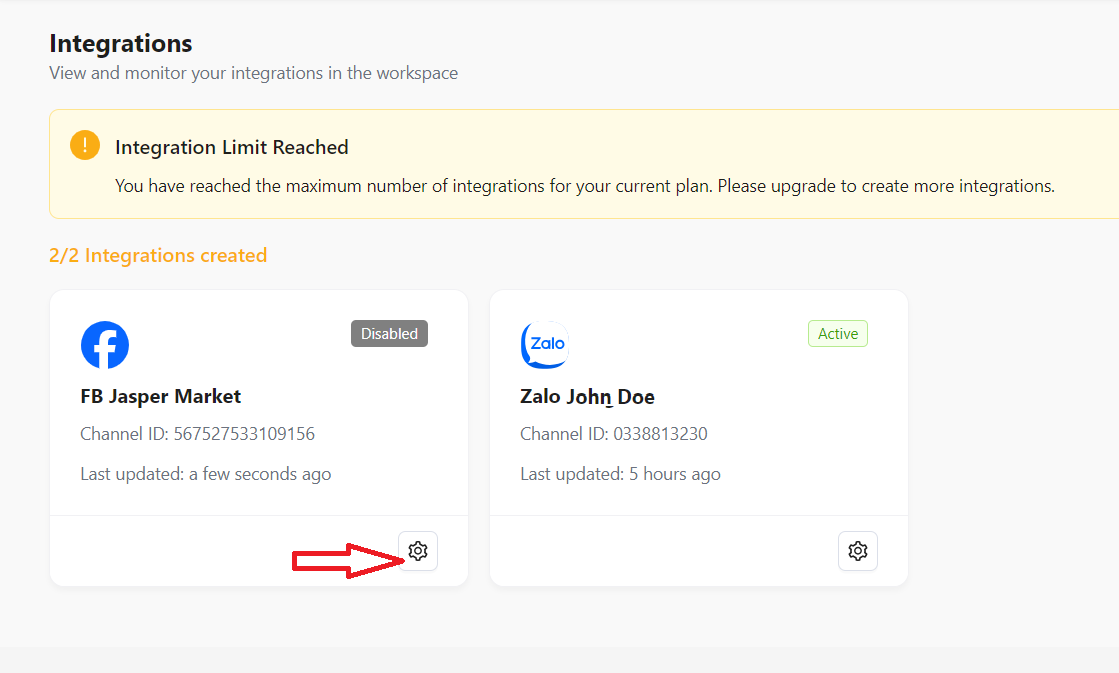
After successfully creating the Integration, click the setting icon to configure the Integration
-
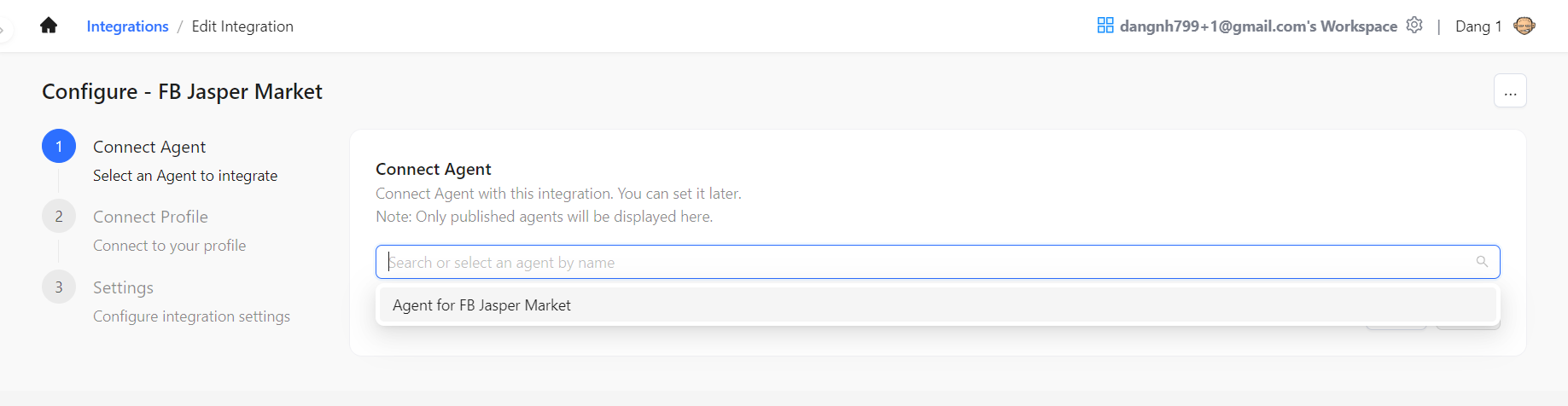
In the configuration interface, there are 3 steps to complete the setup:
-
Connect Agent: Link to an existing AI Agent (can be added later)
-
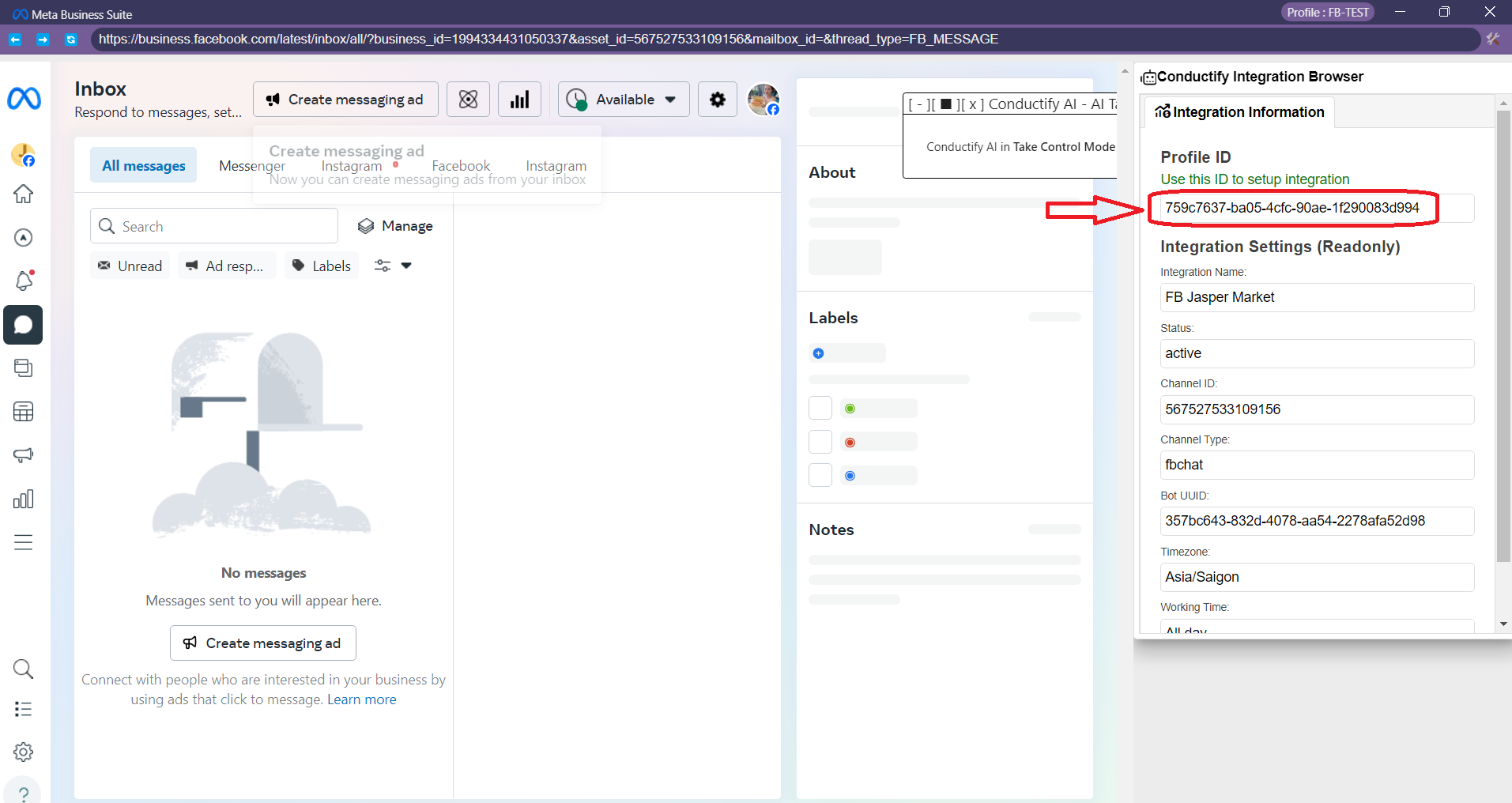
Connect Profile: Link to the Profile created earlier in Integration Browser by:
- Click the wrench icon in the top right corner of Integration Browser and copy the Profile ID
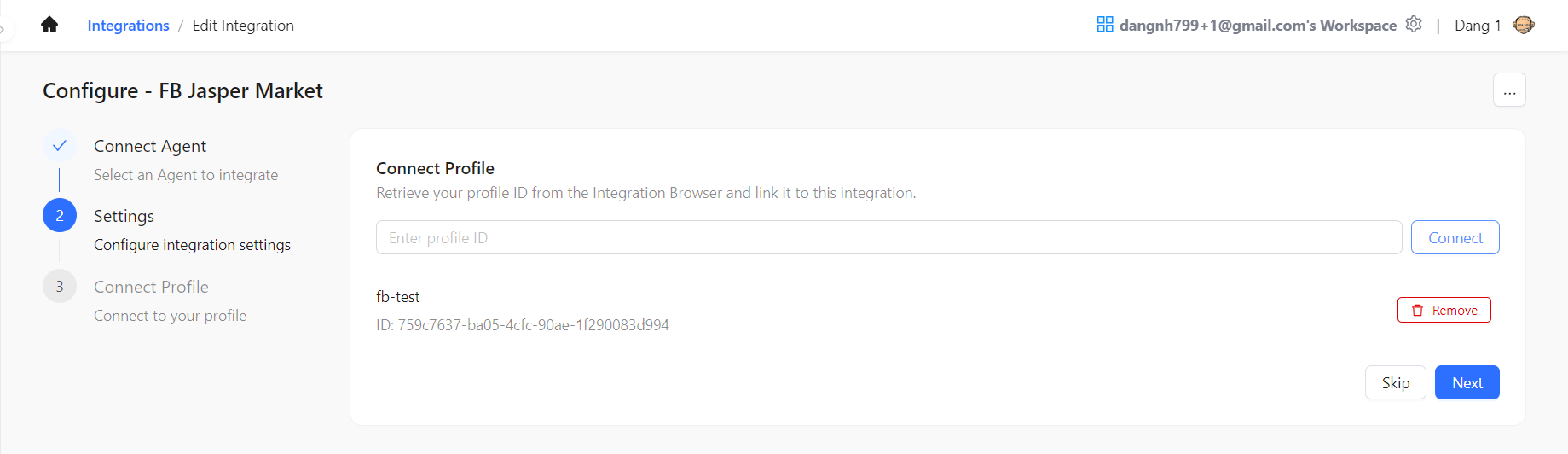
- Paste the Profile ID into the Connect Profile field and click Connect

- After successfully connecting to the Profile, check the Profile name and Profile ID, then click Next
- Click the wrench icon in the top right corner of Integration Browser and copy the Profile ID
-
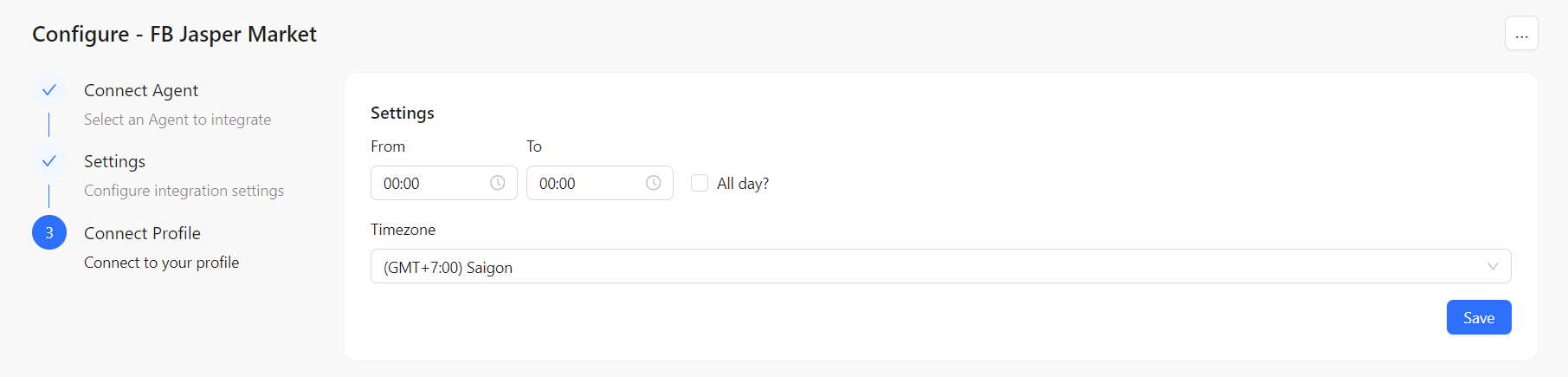
Settings: Set the operating hours for the Integration
-
-
After completing the steps, click the Save button to save the configuration
-
You have completed all steps to create a Facebook Integration. You can click the setting icon to check or modify any necessary information.
Facebook Integration supports multiple Profiles. Add different Profiles by clicking the Add button