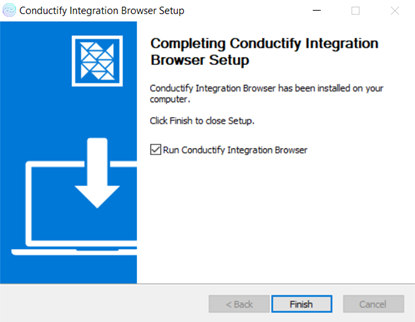
Install Integration Browser
Part 1: Download and Installation
Step 1: Download Conductify Integration Browser
- Download Conductify Integration Browser from here.
Note
Download the latest version. For Windows machines use the .exe file, for Mac machines use the .dmg file
- Run the downloaded file with administrator privileges to begin the installation process.
Step 2: Setup
-
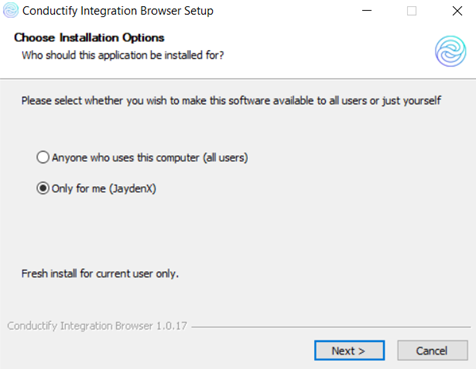
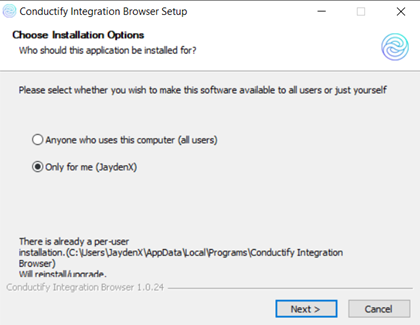
In the installation window, select Only for me to install the software for the current account only.
-
Click Next to continue.
Step 3: Choose Storage Location
-
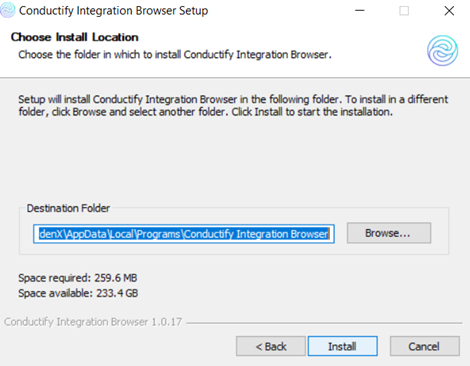
Select the storage location for the software on your computer.
-
Click Install to begin the installation process.
Step 4: Complete Installation
-
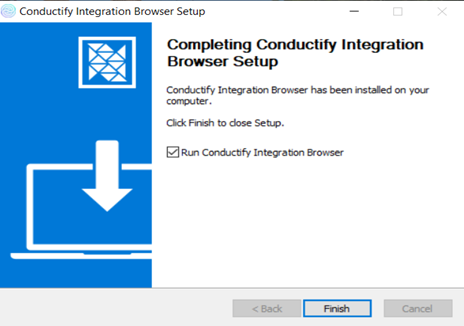
After the installation process is complete, click Finish.
Step 5: Create Profile
-
Open the Conductify Integration Browser application.
-
Click the Add button to create a new profile. Name the profile using only letters, numbers, and hyphens.
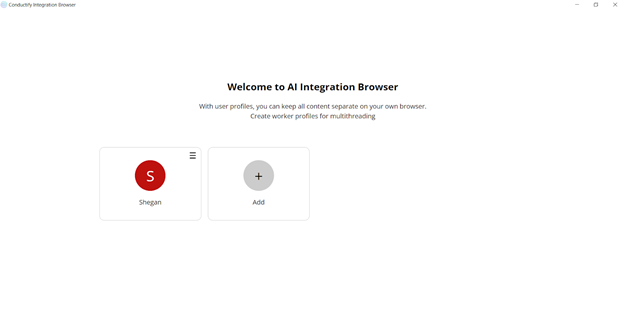
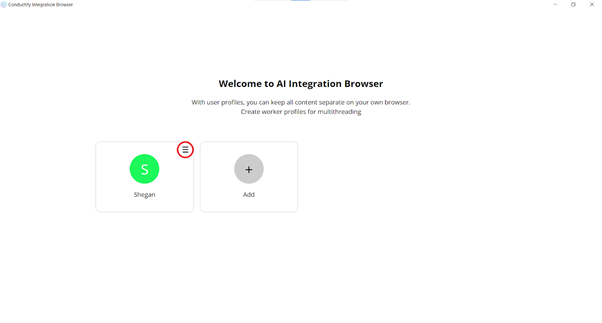
Click on the circle icon to rename or delete the profile.
Part 2: How to Update Integration Version
Step 1: Setup New Version
-
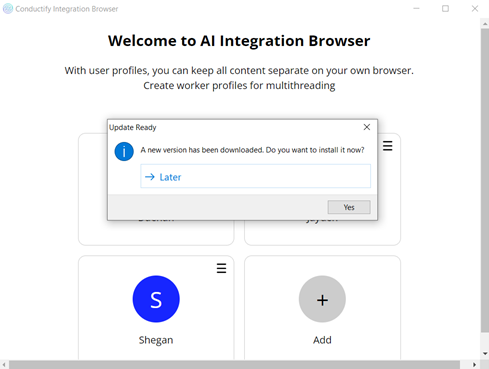
When a new version is released, the Integration Browser will automatically display the panel below and ask if you want to upgrade to the latest version. Users should always click Yes to update.
Step 2: Choose Account
-
In the installation window, select Only for me to install the software for the current account only.
Step 3: Complete Update
-
After the update process is complete, click Finish.